I have built many websites using WordPress’s block editor, Gutenberg.
I’ll walk you through the technical details developers need when building a Gutenberg site, explain how we approach these projects, and share real-world examples from our work.
Table of Contents
- Building a Gutenberg theme
- Wide/Full Alignment
- Editor Font Sizes
- Theme Colors
- Block Style Options
- Use SASS
- Editor Styles
- Set block width in Gutenberg
- Creating block templates
- Building Custom Blocks
- More Tutorials
- Types of Gutenberg websites
- Is Gutenberg the right choice?
Building a Gutenberg theme
In most cases, a theme optimized for Gutenberg is similar to any other WordPress theme. Many existing themes work well with the block editor with only a few adjustments to support block-specific features and editor styles.
Wide/Full Alignment
add_theme_support( 'align-wide' );
Adding this support enables “wide” and “full” alignment options for blocks such as images and other content types that support extended alignment. You also need corresponding CSS in your theme so those alignment options display correctly, just as you style .alignleft for classic image alignment.
Editor Font Sizes
Gutenberg lets users choose predefined font sizes from the editor settings. You declare available sizes in your theme and provide CSS classes so typography in content remains consistent and easy to update later.
// -- Disable custom font sizes
add_theme_support( 'disable-custom-font-sizes' );

// -- Editor Font Sizes
add_theme_support( 'editor-font-sizes', array(
	array(
		'name'      => __( 'Small', 'ea_genesis_child' ),
		'shortName' => __( 'S', 'ea_genesis_child' ),
		'size'      => 12,
		'slug'      => 'small'
	),
	array(
		'name'      => __( 'Normal', 'ea_genesis_child' ),
		'shortName' => __( 'M', 'ea_genesis_child' ),
		'size'      => 16,
		'slug'      => 'normal'
	),
	array(
		'name'      => __( 'Large', 'ea_genesis_child' ),
		'shortName' => __( 'L', 'ea_genesis_child' ),
		'size'      => 20,
		'slug'      => 'large'
	),
) );
Gutenberg uses classes such as .has-small-font-size rather than inlining sizes, keeping content separate from presentation and simplifying future redesigns.
Theme Colors
// -- Disable Custom Colors
add_theme_support( 'disable-custom-colors' );

// -- Editor Color Palette
add_theme_support( 'editor-color-palette', array(
	array(
		'name'  => __( 'Blue', 'ea_genesis_child' ),
		'slug'  => 'blue',
		'color' => '#59BACC',
	),
	array(
		'name'  => __( 'Green', 'ea_genesis_child' ),
		'slug'  => 'green',
		'color' => '#58AD69',
	),
) );
Disabling the free color picker and providing a curated palette helps maintain brand consistency. When a block uses a palette color for background or text, Gutenberg adds classes like .has-{color}-background-color and .has-{color}-color, which your CSS should target.
Block Style Options
Blocks can offer multiple visual styles (for example, Quote or Button variations). Use registerBlockStyle to add styles and unregisterBlockStyle to remove defaults you don’t want available.
Use SASS
SASS is extremely helpful when building a Gutenberg theme. You typically need separate stylesheets for frontend and editor, and SASS features like loops and variables make generating consistent, maintainable CSS much easier—especially for theme color palettes and responsive block rules.
Editor Styles
Editor styles are not automatically applied to Gutenberg; you must enable them with add_theme_support( 'editor-styles' ) and register an editor stylesheet with add_editor_style(). Editor styles are prefixed so they only affect the editor environment.
// Editor Styles
add_theme_support( 'editor-styles' );
add_editor_style( 'assets/css/editor-style.css' );
Alternatively, enqueue a dedicated editor stylesheet via enqueue_block_editor_assets, but ensure your rules target the editor so you don’t inadvertently affect WordPress admin UI. Do not load your entire frontend stylesheet into the editor—only the styles needed for an accurate editing experience.
Set block width in Gutenberg
Gutenberg applies base styling to blocks, but the editor’s max-width may differ from your site’s frontend. Use a partial (for example, _gutenberg.scss) to match normal, wide, and full block widths to your theme’s content width variable.
/* Post title width */
.editor-post-title__block.wp-block {
	max-width: $content-width;
}

/* Main column width */
.wp-block {
    max-width: $content-width;

	/* Wide column width */
	&[data-align="wide"] {
		max-width: none;

		@include media(">=medium") {
			max-width: none;
			margin-left: calc(25vw - 25%);
			margin-right: calc(25vw - 25%);
		}
	}

	/* Full column width */
	&[data-align="full"] {
		max-width: none;
	}
}
Creating block templates
Block templates let you pre-populate the editor with a set of default blocks and default content within those blocks. This simplifies content creation and helps ensure consistent structure—for example, case summaries that follow the same layout on an attorney’s site.
Templates can be enforced at different levels: locked completely, locked for insertions only, or left as a flexible starting point depending on how much control you want to give editors.
Building Custom Blocks
A common decision is whether to build custom blocks in JavaScript from scratch or to use a tool like Advanced Custom Fields (ACF). My approach mirrors how I decide on metabox development: for public plugins or widely distributed functionality, I build blocks from scratch to avoid dependencies. For client-specific sites, I often use ACF, Carbon Fields, or CMB2 to speed development and deliver a reliable result quickly.
When creating reusable plugins, custom JavaScript blocks keep the package lean. For site-specific blocks, ACF-based blocks let me produce polished results faster while still offering a good editing experience for clients.
More Tutorials
There are many helpful resources and tutorials covering advanced Gutenberg topics, including extending core blocks and working with the block parser.
Types of Gutenberg websites
Broadly, Gutenberg sites fall into two categories: simple and custom.
Simple Gutenberg Websites
Gutenberg excels for straightforward content-driven sites. Using core blocks, clients can assemble attractive, consistent pages without custom metaboxes. Theme work for these projects focuses mainly on CSS—ensuring core blocks match the brand and meet content needs. This approach is cost-effective and fast, ideal for organizations like non-profits.
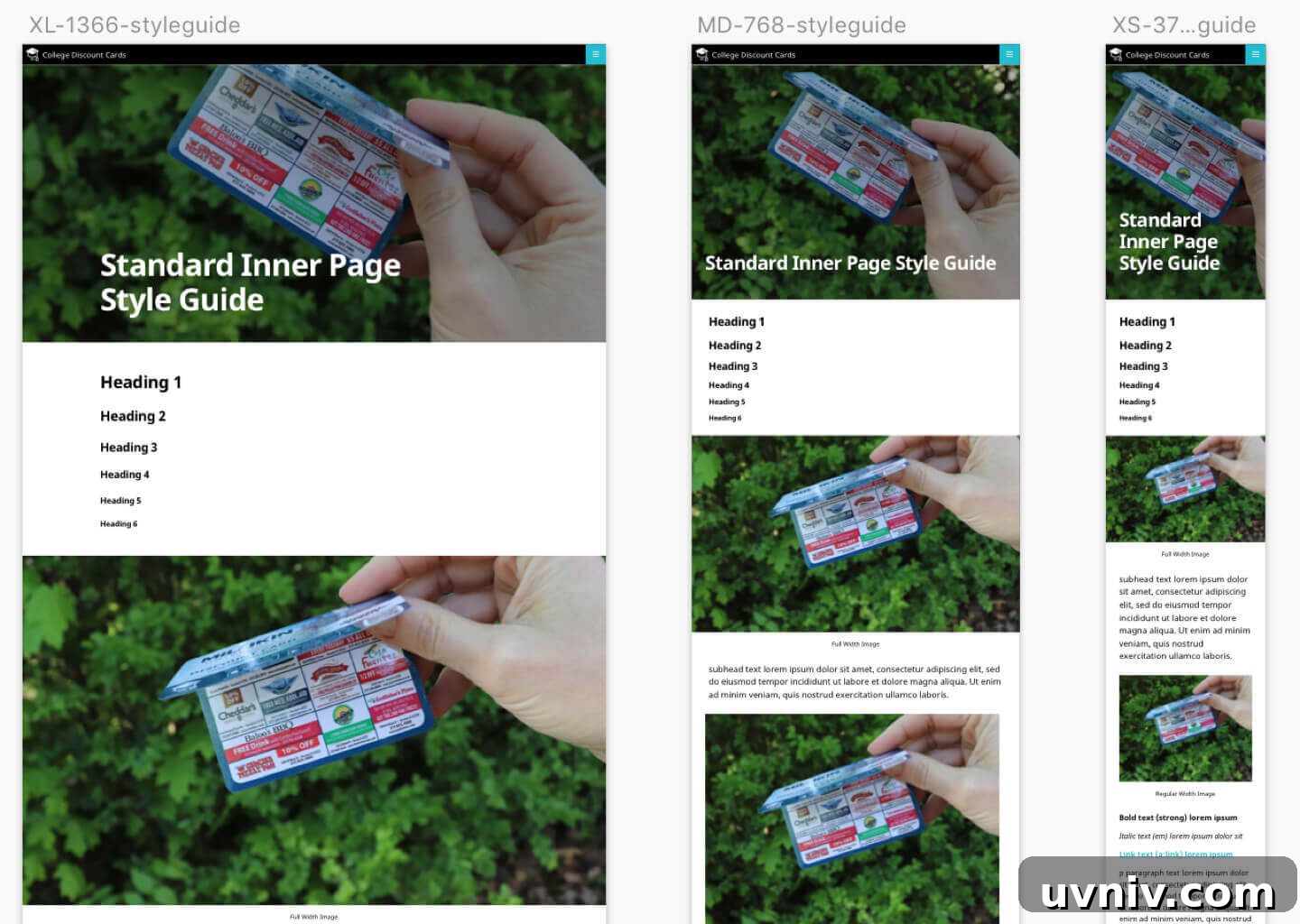
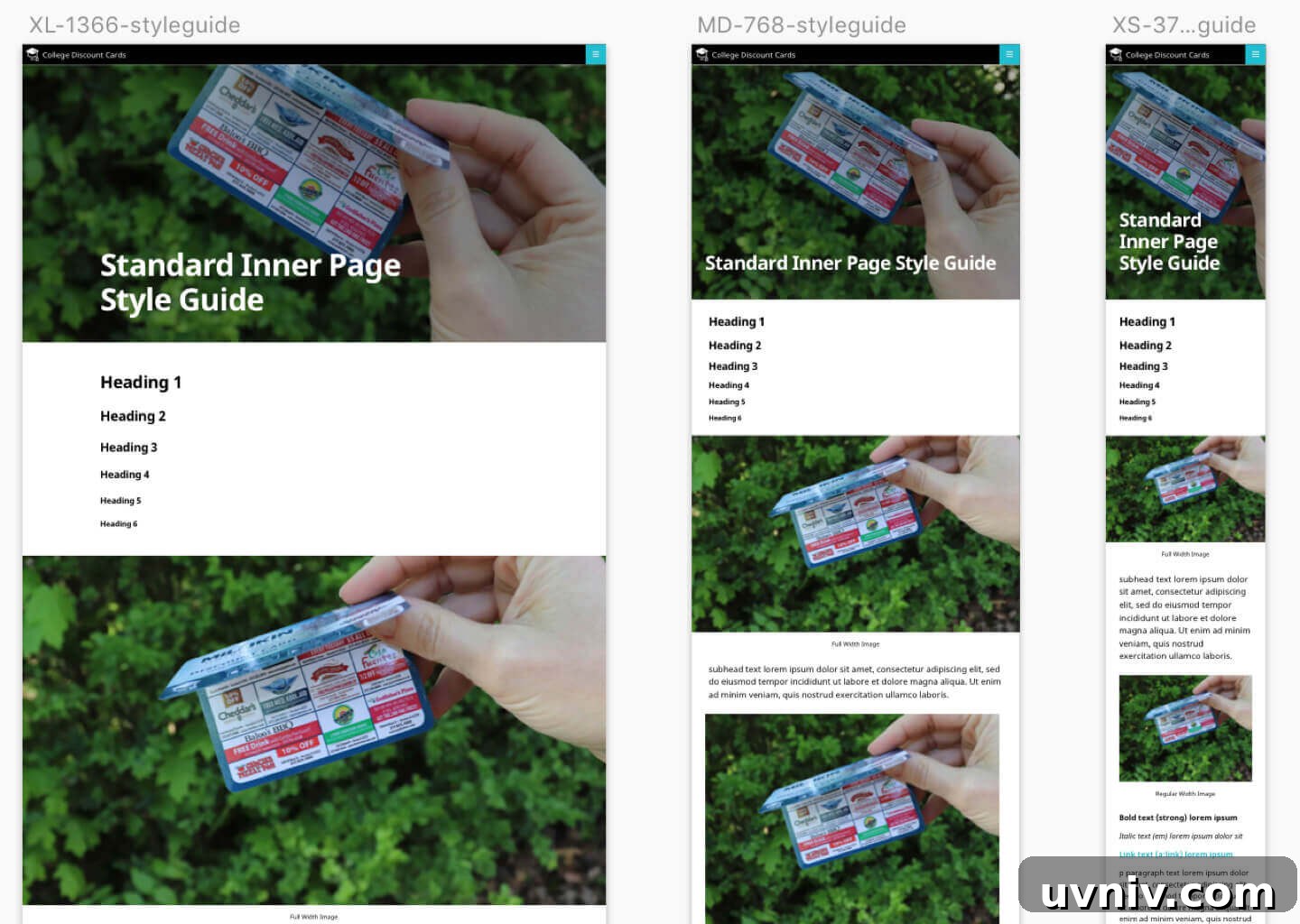
Our workflow typically begins with a style guide that defines how core blocks should look. Designers then mock up key pages using those blocks, and developers implement styles and construct pages from those building blocks.
Custom Gutenberg Websites
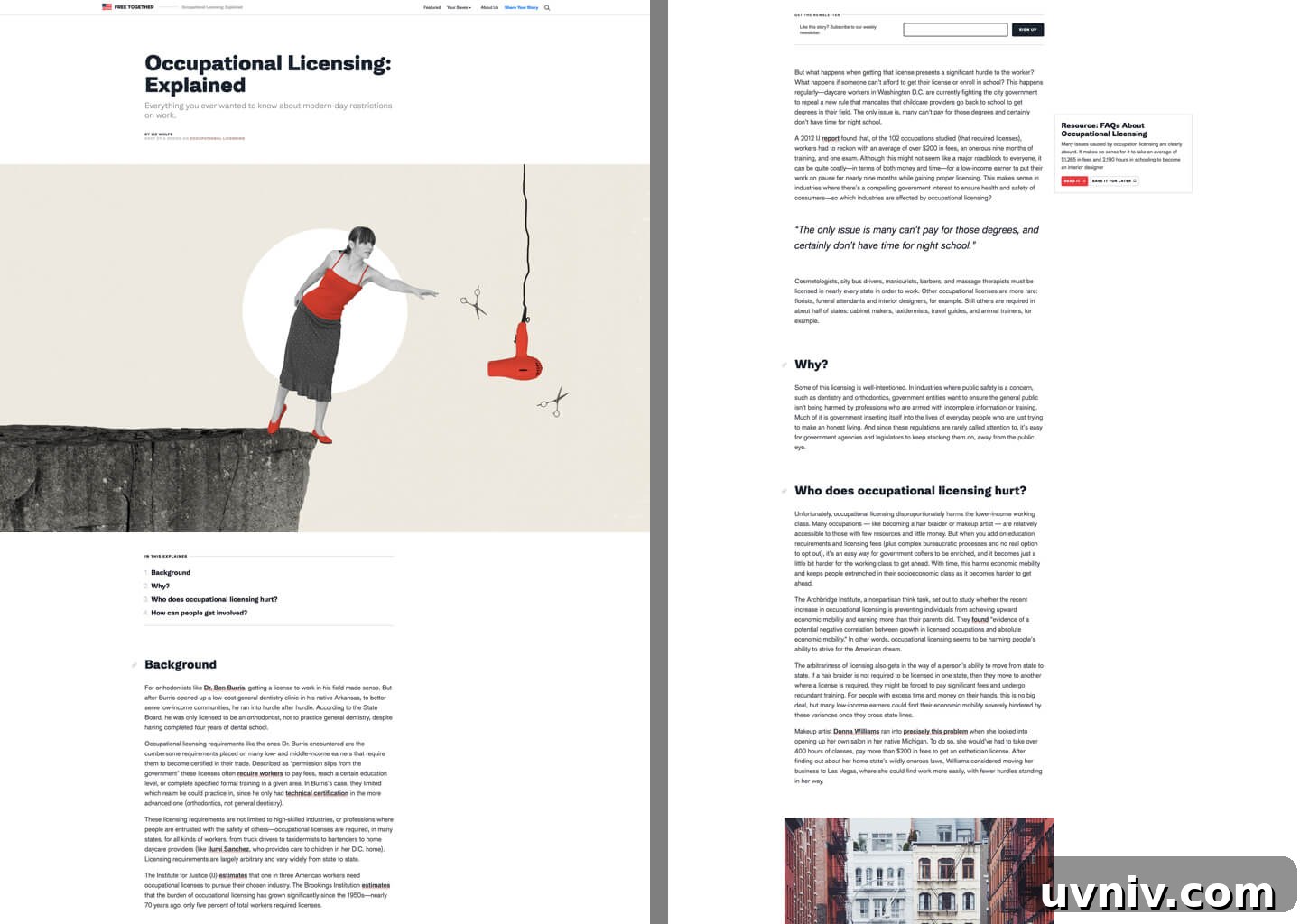
For more complex projects we follow a traditional discovery and design process. We document requirements, design the UI, and mock up both core and custom blocks along with necessary page layouts. In addition to styling core blocks, we build custom blocks to implement specialized features—such as a dynamic “Table of Contents” block that lists and links to headings within an article.
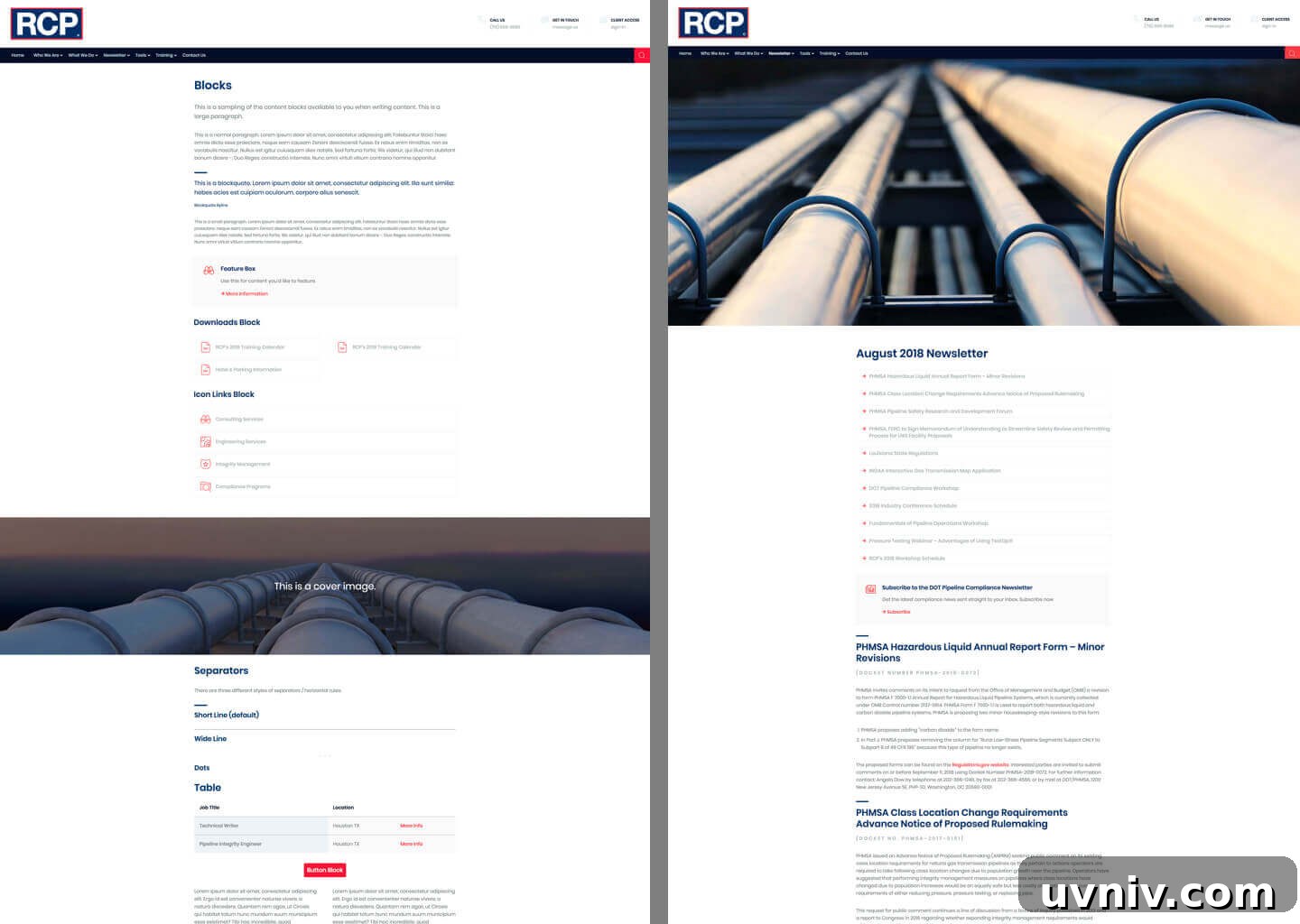
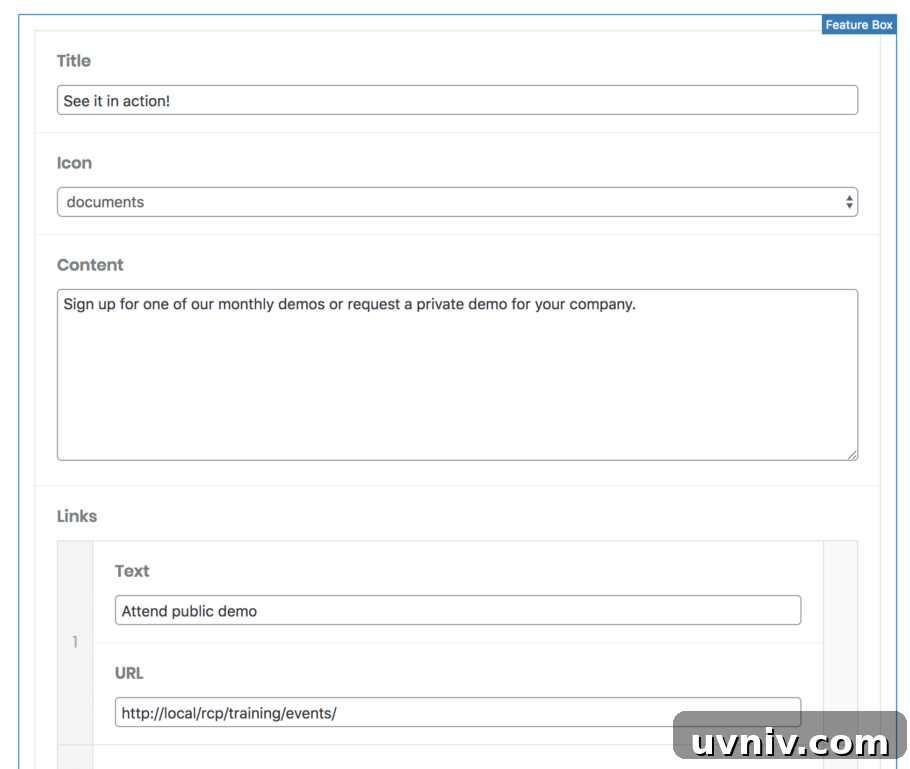
On larger sites we built many custom blocks—Feature Boxes, Icon Links, and Download components among them—to give editors flexible, consistent tools.
Is Gutenberg the right choice?
Consider the value proposition for each project. We use the block editor on most sites, and only disable it for specific templates when a different editing interface is more appropriate.
Key benefits of Gutenberg:
- For simple sites, Gutenberg avoids the need for extensive custom metaboxes and templates, allowing us to deliver better results faster and at lower cost.
- Complex content patterns that were once shoehorned into TinyMCE or shortcodes are now natural to implement as custom blocks, simplifying both editing and output.
- Adopting the block editor helps future-proof sites by aligning with WordPress’s direction rather than relying on legacy interfaces.
Below are examples of blocks we built—both frontend and backend previews show how Gutenberg can streamline content creation and editing for non-technical users.

Gutenberg is not a page builder
Gutenberg is a block-based content editor rather than a full page builder. While it supports nested blocks (for example, Columns), that experience can be limited and sometimes awkward compared with dedicated page builders. Complex, highly visual pages (homepages, landing pages) may still be better served by a dedicated page builder or a modular template system built with tools like Carbon Fields or ACF.
We often use Gutenberg for the majority of content pages where it replaces many custom templates. For visually complex templates we may disable Gutenberg on those templates and provide a targeted page-building interface instead.
That said, Gutenberg is continually improving and can be used to build complete sites—my own site, including the homepage, is built entirely with Gutenberg.